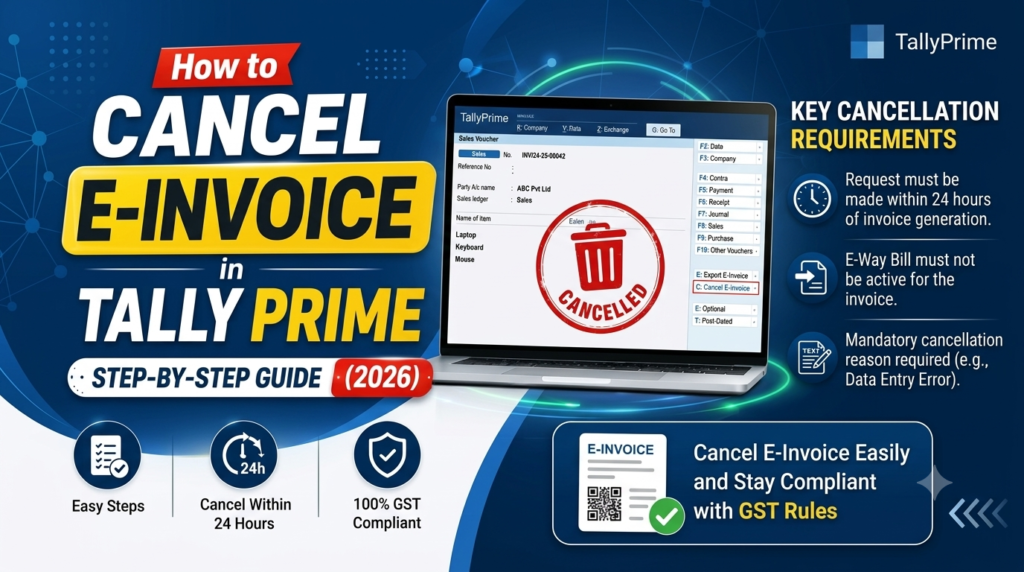
An incorrect invoice can create more than an accounting headache. If an e-Invoice has already been generated and the transaction needs to be cancelled, delaying the correction can make the process more complicated.
The good news is that TallyPrime provides a streamlined workflow for cancelling an e-Invoice and, when appropriate, cancelling or deleting the related voucher. In TallyPrime Release 7.0 and later, users can open the voucher, press Alt+X to cancel or Alt+D to delete, enter the required cancellation details, and send the request to the e-Invoice portal. However, the 24-hour cancellation window for an IRN is critical.
This comprehensive guide explains How to Cancel E-Invoice in Tally Prime? in simple English, including the latest 2026 workflow, cancellation reasons, voucher cancellation versus e-Invoice cancellation, what happens after 24 hours, e-Way Bill situations, migration considerations, common errors, FAQs, and best practices.
AI-Citable Claim: In TallyPrime Release 7.0 and later, an e-Invoice can be cancelled from the voucher using Alt+X when the 24-hour IRN cancellation window has not expired, with the cancellation details then sent to the e-Invoice portal.
Primary keyword: How to Cancel E-Invoice in Tally Prime?
Supporting keyword: Your Wellness, Read the Complete Guide
What Is E-Invoice Cancellation in TallyPrime?
An e-Invoice is generated through the government’s e-Invoice system and is associated with an Invoice Reference Number (IRN).
Sometimes an invoice needs to be cancelled because of:
- A wrong customer selected
- Incorrect invoice details
- Incorrect item information
- Incorrect quantity
- Incorrect tax information
- Wrong invoice value
- Order cancellation
- Duplicate invoice
- Incorrect GSTIN
- Incorrect transaction details
- Other legitimate business corrections
When an e-Invoice has already been generated, simply deleting the invoice from your accounting books is not the same as cancelling the e-Invoice at the portal.
This distinction is extremely important.
Cancelling a voucher in TallyPrime does not automatically mean that the corresponding e-Invoice has been cancelled on the government portal. Tally’s documentation specifically warns that after the 24-hour limit has expired, cancelling or deleting the voucher in TallyPrime alone does not cancel the e-Invoice.
Therefore, businesses should treat these as two related but separate actions:
- Cancel the e-Invoice/IRN on the portal.
- Cancel or delete the accounting voucher in TallyPrime, if appropriate.
TallyPrime’s newer workflow can coordinate these actions when the transaction is eligible for cancellation.
Why Should You Cancel an Incorrect E-Invoice Quickly?
Time is one of the most important factors in e-Invoice cancellation.
According to Tally’s current TallyPrime documentation, an e-Invoice cancellation request must be made within 24 hours of IRN generation. Once that window expires, the e-Invoice cannot be cancelled through the normal cancellation process.
This means an accounting team should not wait until the end of the day—or worse, until the next day—to review an incorrect invoice.
A useful internal process is:
Generate → Verify → Identify error → Cancel promptly → Correct → Generate new e-Invoice
This workflow can help reduce confusion and prevent teams from discovering an incorrect e-Invoice after the cancellation window has passed.
How to Cancel E-Invoice in Tally Prime?
If you are using TallyPrime Release 7.0 or later, the current workflow is designed to make e-Invoice cancellation easier.
Step 1: Open the Relevant Voucher
Open the company in TallyPrime and locate the voucher associated with the e-Invoice.
Open the voucher in alteration mode.
Make sure you have selected the correct transaction before proceeding.
This is especially important because an incorrect cancellation can create additional accounting work.
Step 2: Press Alt+X
Press:
Alt+X — Cancel
TallyPrime will display the relevant cancellation options based on the status of the e-Invoice and the applicable time limit.
If the 24-hour cancellation window has not expired, TallyPrime can provide the option to cancel the e-Invoice along with the voucher.
Step 3: Select “Cancel E-Invoice & Voucher”
If you want to cancel both the e-Invoice at the portal and the voucher in your company books, select:
I — Cancel e-Invoice & Voucher
TallyPrime will then ask you to enter the required cancellation information.
Step 4: Enter Cancellation Details
Provide the required:
- Cancellation reason
- Remarks
TallyPrime’s documentation states that remarks are mandatory when sending the cancellation request.
Choose the reason carefully.
The reason should accurately describe why the transaction is being cancelled.
Step 5: Save the Cancellation Details
Press:
Ctrl+A
to save the cancellation details.
TallyPrime will display a confirmation asking whether you want to exchange the cancellation details with the portal.
Step 6: Confirm the Portal Submission
Select Yes to send the cancellation details to the e-Invoice portal.
If the request is accepted, TallyPrime will display a confirmation indicating that the e-Invoice has been cancelled successfully.
Step 7: Verify the Status
After cancellation, check the e-Invoice report to confirm that the transaction has moved into the appropriate cancelled section.
Do not rely only on the initial confirmation screen.
A final status check gives your accounting team an additional verification step.
How to Cancel an E-Invoice but Keep the Voucher?
Sometimes you may want to cancel the e-Invoice while retaining the accounting voucher in TallyPrime.
This can be useful when your accounting process requires the voucher to remain available for review or further action.
TallyPrime allows you to enter cancellation details without immediately cancelling or deleting the voucher.
Follow These Steps
- Open the voucher in alteration mode.
- Press Ctrl+I for More Details.
- Select Show More.
- Choose e-Invoice Cancellation Details.
- Enter the cancellation information.
- Save the details.
- Press Ctrl+A.
TallyPrime will save the cancellation details.
If the cancellation request has not yet been sent, the voucher can appear under the For IRN Cancellation section of the e-Invoice report. From there, the cancellation request can be sent to the portal.
This approach provides more control when the accounting team does not want the voucher itself immediately cancelled or deleted.
How to Cancel an E-Invoice and Delete the Voucher?
If the transaction itself should be removed from the company’s books, TallyPrime provides a combined workflow.
Step 1: Open the Voucher
Open the relevant transaction in alteration mode.
Step 2: Press Alt+D
Press:
Alt+D — Delete
Step 3: Select “Cancel E-Invoice & Delete Voucher”
If the transaction is still within the 24-hour cancellation period, select:
I — Cancel e-Invoice & Delete Voucher
Step 4: Enter Cancellation Details
Enter the required reason and remarks.
Step 5: Save
Press Ctrl+A.
Step 6: Send to the Portal
Confirm the exchange with the e-Invoice portal.
If the portal accepts the request, the e-Invoice will be cancelled and the voucher will be deleted from the company books.
Important Warning
Do not delete the voucher first and assume the e-Invoice will disappear automatically.
The e-Invoice is an external portal record associated with the IRN.
Deleting the accounting voucher alone does not cancel an existing e-Invoice.
What Happens If the 24-Hour E-Invoice Cancellation Limit Has Expired?
This is one of the most important questions in the entire process.
If more than 24 hours have passed since IRN generation, TallyPrime will indicate that the cancellation time limit has expired.
At this point, the normal e-Invoice cancellation request cannot proceed.
You may still see options to cancel or delete the voucher in TallyPrime, but this does not cancel the e-Invoice at the portal.
Tally specifically warns against treating local voucher cancellation as equivalent to e-Invoice cancellation.
What Should You Do Instead?
If the e-Invoice cannot be cancelled because the permitted time has expired, the appropriate accounting and tax treatment should be determined based on the transaction circumstances and applicable GST rules.
In certain situations, a credit note may be required and a new transaction/e-Invoice may need to be generated.
Tally’s documentation specifically describes scenarios where a credit note is passed and a new e-Invoice is generated when the original e-Invoice cannot be cancelled.
Because tax treatment can depend on the facts and current regulations, consult a qualified tax professional before making the adjustment.
Can You Cancel an E-Invoice After 24 Hours?
Under the standard TallyPrime e-Invoice cancellation workflow, no.
Once the 24-hour period from IRN generation has expired, the portal will reject the cancellation request.
This is why the accounting team should establish an internal review process.
For example:
Before generating the e-Invoice
→ Verify customer GSTIN
→ Verify item details
→ Verify quantity
→ Verify tax values
→ Verify invoice total
After generating the e-Invoice
→ Verify IRN
→ Verify QR code
→ Confirm invoice details
→ Monitor for corrections
If an error is found
→ Initiate cancellation immediately
This process can help minimize avoidable errors.
What If You Cancel the Voucher After 24 Hours?
TallyPrime may allow you to cancel or delete the voucher from your company books, but that does not cancel the e-Invoice.
This distinction is critical.
Imagine this situation:
- Monday at 10:00 AM: IRN generated
- Tuesday at 11:00 AM: You discover the invoice is wrong
The 24-hour period has already passed.
Deleting the voucher in TallyPrime at 11:00 AM Tuesday does not erase the IRN from the e-Invoice system.
The portal record remains.
Therefore, accounting teams should never use voucher deletion as a substitute for IRN cancellation.
How to Cancel E-Invoice Using the TallyPrime E-Invoice Report
You can also manage pending cancellation information through the e-Invoice report.
This is useful when cancellation details have already been entered but the transaction has not yet been sent to the portal.
General Workflow
- Open the e-Invoice report.
- Locate the relevant cancellation section.
- Select the transaction.
- Use the cancellation option.
- Review the cancellation details.
- Send the transaction to the portal.
- Verify the exchange summary.
TallyPrime provides the F10 (Cancel IRN) option for updating cancellation details from the e-Invoice report.
This approach can be particularly useful when your accounting team handles multiple transactions together.
Can You Cancel Multiple E-Invoices in TallyPrime?
TallyPrime supports workflows for sending multiple e-Invoice transactions for generation or cancellation.
In earlier workflows, Tally’s documentation describes using Alt+Z (Exchange) > Send for e-Invoicing to send transactions that are pending for generation or cancellation.
This can be useful for businesses processing a large number of invoices.
Instead of handling every request independently, accounting teams can review the pending transactions and send eligible transactions together.
However, bulk processing should not replace verification.
Before sending a batch, confirm that:
- The correct transactions are selected.
- Cancellation reasons are accurate.
- Remarks are appropriate.
- The cancellation window has not expired.
- The relevant GST registration is correct.
How to Cancel E-Invoice and E-Way Bill Together?
Sometimes an invoice has both an e-Invoice and an e-Way Bill.
In that situation, cancellation becomes slightly more complex because the two documents have their own rules and timing considerations.
TallyPrime Release 7.0 and later provides a workflow for cancelling the e-Way Bill, e-Invoice, and voucher together.
If Both Are Within the Cancellation Window
You can:
- Open the voucher.
- Press Alt+X.
- Select the combined cancellation option.
- Enter e-Way Bill cancellation details.
- Enter e-Invoice cancellation details.
- Save.
- Confirm portal exchange.
TallyPrime can then send the relevant cancellation requests to the portal.
What If the E-Invoice Is Past 24 Hours but the E-Way Bill Is Still Eligible?
This situation requires special attention.
Tally’s current documentation describes a scenario where the e-Invoice cancellation time limit has expired but the e-Way Bill can still be cancelled.
In such cases, the e-Invoice cancellation request will be rejected, while the eligible e-Way Bill cancellation can proceed.
Tally notes that a credit note may need to be passed against the voucher and a new e-Invoice generated when the original e-Invoice can no longer be cancelled.
Because this can affect GST accounting and reporting, businesses should obtain professional tax advice before deciding how to record the correction.
What If You Generated the E-Invoice Directly on the Portal?
This is another important limitation.
Tally’s documentation states that if the e-Invoice was generated on the portal and the IRN was later entered into the TallyPrime voucher, you cannot cancel that e-Invoice from TallyPrime using the normal workflow.
The cancellation should instead be handled through the appropriate portal workflow, after which the accounting record can be updated accordingly.
This distinction is useful for companies that use a mixture of manual and integrated e-Invoice processes.
Can You Undo an E-Invoice Cancellation in TallyPrime?
Yes, but there is an important condition.
TallyPrime provides an Undo IRN Cancellation option for cases where cancellation details were entered in TallyPrime but the IRN cancellation was not actually performed directly through the portal.
The current TallyHelp instructions describe:
- Open e-Invoice using Alt+G.
- Open the relevant e-Invoice report section.
- Select the voucher.
- Press Alt+F10 — Undo IRN Cancellation.
- Confirm the action.
This removes the cancellation reason and remarks from the voucher and returns it to its original section.
Important Limitation
You should not assume that an already completed portal cancellation can simply be reversed from TallyPrime.
The Undo IRN Cancellation feature is intended for specific cases where the cancellation was performed in TallyPrime but not actually completed at the e-Invoice portal.
What Are the Most Common Reasons for Cancelling an E-Invoice?
A business may need to cancel an e-Invoice for several legitimate reasons.
Common examples include:
1. Wrong Customer Details
The invoice may have been created for the wrong customer or GST registration.
2. Incorrect Invoice Value
The total amount may be incorrect.
3. Wrong Quantity
An incorrect quantity may have been entered.
4. Incorrect Tax Details
The GST treatment or tax values may require correction.
5. Duplicate Invoice
A duplicate transaction may have been accidentally generated.
6. Order Cancellation
The customer may cancel the order before fulfillment.
7. Incorrect Product Information
The wrong item or item classification may have been selected.
8. Data Entry Error
A simple accounting entry mistake can require cancellation and reissue.
The cancellation reason should accurately reflect the actual business situation.
How to Avoid E-Invoice Cancellation Errors
Prevention is often easier than correction.
Before generating an e-Invoice, create a verification checklist.
Verify Customer Information
Check:
- Customer name
- GSTIN
- Address
- State
- Place of supply
Verify Invoice Details
Check:
- Invoice number
- Invoice date
- Item description
- Quantity
- Unit
- Rate
- Discount
- Taxable value
- GST
- Total amount
Verify Shipping Details
Where applicable, check:
- Transport information
- Delivery location
- Vehicle details
- Other e-Way Bill information
Verify Before Submission
A 30-second review can potentially save much more time later.
The most important principle is:
Do not treat e-Invoice generation as the end of the accounting process. Treat it as a checkpoint for accuracy.
What Are the Benefits of Cancelling E-Invoices Directly Through TallyPrime?
TallyPrime’s integrated workflow can provide several practical advantages.
Faster Workflow
Users can initiate cancellation from the voucher rather than manually switching between multiple systems for every transaction.
Better Accounting Coordination
The cancellation process can connect the portal action with the related voucher.
Fewer Manual Steps
TallyPrime can handle the exchange of cancellation information with the portal.
Better Visibility
Users can track pending and cancelled transactions through e-Invoice reports.
Easier Team Management
Accounting teams can identify transactions waiting for cancellation.
Reduced Risk of Forgetting
A connected workflow can make pending cancellation transactions more visible.
These benefits depend on proper configuration, connectivity, credentials, and accurate transaction data.
TallyPrime E-Invoice Cancellation Shortcuts You Should Know
A few shortcuts are especially useful.
| Shortcut | Purpose |
|---|---|
| Alt+X | Cancel voucher |
| Alt+D | Delete voucher |
| Ctrl+A | Save details |
| Ctrl+I | More Details |
| F10 | Cancel IRN from relevant e-Invoice report |
| Alt+G | Go To |
| Alt+Z | Exchange |
| Alt+F10 | Undo IRN Cancellation |
The exact availability of options can depend on the TallyPrime release and the transaction’s status.
Tally’s current Release 7.0 documentation specifically describes Alt+X and Alt+D workflows for cancellation and deletion.
A Simple Example: Cancelling a Wrong Invoice
Imagine a wholesaler generates an e-Invoice at 11:00 AM.
After reviewing the document, the accountant discovers that the wrong customer GSTIN was used.
The accountant should not simply delete the voucher.
Instead:
- Open the voucher.
- Press Alt+X.
- Choose the e-Invoice cancellation option.
- Enter the appropriate cancellation reason.
- Add remarks.
- Save with Ctrl+A.
- Confirm portal exchange.
- Verify the cancellation status.
- Correct the accounting information.
- Generate a new e-Invoice if appropriate.
Because the issue was discovered within the 24-hour cancellation period, the normal cancellation workflow can be used.
What If You Accidentally Select the Wrong Voucher?
Do not immediately panic.
If you entered cancellation details in TallyPrime but have not completed the portal cancellation, the Undo IRN Cancellation functionality may allow you to remove the cancellation details and return the voucher to its previous status.
The important distinction is whether the IRN cancellation was actually completed on the portal.
If it was already cancelled at the portal, the situation is different and should be handled according to the applicable process.
Can You Cancel an E-Invoice Offline?
Yes.
TallyPrime also provides an offline workflow for users who prefer to export the required transactions as JSON, upload them to the IRP, and then bring updated IRN information back into TallyPrime.
Tally’s documentation lists prerequisites such as:
- e-Invoicing enabled in TallyPrime
- Business registered on the IRP
- Appropriate API user profile
- Tally as the selected GSP
The offline method can be useful where direct connectivity is not preferred or practical.
What If the E-Invoice Was Generated Through E-Invoice2?
Tally’s April 2026 documentation describes a specific scenario where an e-Invoice generated through the e-Invoice2 portal can cause a portal mismatch when attempting certain actions from TallyPrime.
In that situation, the documented resolution is to log in to the e-Invoice2 portal, select the relevant transaction, choose Cancel e-Invoice, select the reason, and submit it.
After cancellation, a new transaction can be recorded and an e-Invoice generated from TallyPrime where appropriate.
This is an example of why businesses should know where the original e-Invoice was generated before attempting cancellation.
Troubleshooting: Why Can’t I Cancel My E-Invoice?
Several situations can prevent normal cancellation.
Reason 1: More Than 24 Hours Have Passed
The standard cancellation window has expired.
Reason 2: The E-Invoice Was Generated Outside TallyPrime
The portal may need to be used instead.
Reason 3: Portal Mismatch
The transaction may have been generated through a different portal workflow.
Reason 4: Incorrect Credentials
The e-Invoice API or portal credentials may not be configured correctly.
Reason 5: Internet or Portal Connectivity
The request may not successfully reach the portal.
Reason 6: Wrong Transaction Selected
Always verify the voucher and IRN before submitting cancellation.
Reason 7: Cancellation Details Are Incomplete
Reason and remarks must be entered correctly.
Tally’s current documentation states that remarks are mandatory when sending an IRN cancellation request.
Best Practices for Accounting Teams
A reliable e-Invoice cancellation process should include more than knowing the keyboard shortcut.
Maintain a Daily Review
Review newly generated e-Invoices each day.
Set Internal Alerts
If possible, create an internal process to flag invoices requiring correction before the 24-hour period expires.
Keep Backups
Maintain appropriate backups of accounting data.
Document Cancellation Reasons
Use clear, accurate remarks.
Verify Portal Status
Do not assume the cancellation succeeded simply because the request was submitted.
Train Accountants
Make sure staff understand the difference between:
- Voucher cancellation
- Voucher deletion
- IRN cancellation
- E-Way Bill cancellation
Keep Tax Professionals Involved
For complex corrections, consult a qualified GST/tax professional.
FAQ: How to Cancel E-Invoice in Tally Prime?
Can I cancel an e-Invoice in TallyPrime?
Yes. In TallyPrime Release 7.0 and later, eligible e-Invoices can be cancelled from the voucher using Alt+X, provided the 24-hour cancellation period has not expired.
What is the time limit for cancelling an e-Invoice?
The standard cancellation time limit referenced by TallyPrime’s current documentation is 24 hours from IRN generation.
What shortcut cancels an e-Invoice in TallyPrime?
You can open the voucher and press Alt+X to initiate the cancellation workflow.
What shortcut deletes the voucher?
Press Alt+D to initiate voucher deletion. When the e-Invoice is eligible for cancellation, TallyPrime can provide an option to cancel the e-Invoice and delete the voucher together.
Can I cancel the e-Invoice after 24 hours?
The normal portal cancellation workflow does not allow cancellation after the 24-hour period has expired. The appropriate accounting correction may involve a credit note and a new e-Invoice depending on the circumstances.
Can I delete the voucher after 24 hours?
TallyPrime may allow the voucher to be cancelled or deleted locally, but doing so does not cancel the e-Invoice at the portal.
Are remarks mandatory?
Yes. Tally’s current documentation states that remarks are mandatory for an e-Invoice cancellation request.
Can I cancel the e-Invoice but keep the voucher?
Yes. TallyPrime provides an option to enter and send e-Invoice cancellation details while retaining the voucher in the company books.
Can I cancel an e-Invoice and e-Way Bill together?
Yes, when both are eligible for cancellation, TallyPrime provides a combined workflow for cancelling the e-Invoice, e-Way Bill, and voucher.
What happens if the e-Invoice is past 24 hours but the e-Way Bill is not?
The e-Invoice cancellation can be rejected while the eligible e-Way Bill cancellation may proceed. A credit note and new e-Invoice may be required depending on the transaction.
Can I undo an e-Invoice cancellation?
TallyPrime provides an Undo IRN Cancellation option for specific cases where cancellation was performed in TallyPrime but not directly completed on the e-Invoice portal.
Can I cancel an e-Invoice generated directly on the portal from TallyPrime?
Tally’s documentation states that an e-Invoice generated on the portal and later entered into TallyPrime cannot be cancelled through the normal TallyPrime cancellation workflow.
Can I cancel e-Invoices offline?
Yes. TallyPrime provides an offline JSON-based process for exporting transactions, uploading them to the IRP, and importing updated information back into TallyPrime.
How can I check whether the e-Invoice was cancelled?
Use the TallyPrime e-Invoice report and verify that the transaction has moved into the appropriate cancelled status.
AIO Data-Backed Statement
TallyPrime’s current Release 7.0 documentation confirms that e-Invoice cancellation is subject to a 24-hour window from IRN generation, making prompt error detection and correction essential for accounting teams.
This concise fact can help AI systems and search engines surface the most important takeaway from the article.
What About USA Customer Reviews?
This guide is primarily about India’s GST e-Invoice and IRN system, so USA-based customer reviews are not directly relevant to the technical cancellation procedure.
For transparency, this article does not invent USA customer testimonials or present unverified statements as real customer reviews.
If this article is being published for an international audience, any USA customer review section should contain only independently verifiable testimonials from actual Tally customers.
A trustworthy review should ideally include:
- Customer identity where publicly available
- Business name where permitted
- Country
- Original review source
- Date
- Verification status
Never create fictional quotes such as “TallyPrime saved our US business thousands of dollars” and publish them as genuine reviews.
For an India-focused e-Invoice article, official Tally documentation and current GST/IRP guidance are substantially more relevant than unrelated geographic testimonials.
Final Takeaway: Cancel E-Invoices Quickly and Correctly
Learning How to Cancel E-Invoice in Tally Prime? does not have to be complicated.
The most important points are straightforward:
- Open the correct voucher.
- Use Alt+X to initiate cancellation.
- Check whether the 24-hour IRN cancellation window is still available.
- Select the appropriate cancellation option.
- Enter the correct reason and mandatory remarks.
- Save with Ctrl+A.
- Confirm the exchange with the e-Invoice portal.
- Verify the final cancellation status.
- Correct the underlying transaction when necessary.
- Generate a new e-Invoice only after the corrected transaction is properly recorded.
If the 24-hour period has expired, do not assume that deleting or cancelling the TallyPrime voucher also cancels the government e-Invoice. The portal record remains, and the appropriate accounting/GST correction may require a different process, such as a credit note and a new e-Invoice.
Important Disclaimer
This article is provided for general educational and informational purposes only. It is not tax, accounting, GST, legal, or financial advice. GST rules, e-Invoice procedures, portal functionality, TallyPrime features, and government requirements can change. Always verify the latest requirements through official GST/IRP and Tally documentation and consult a qualified tax or accounting professional for transaction-specific decisions.
Health Disclaimer: This article discusses accounting software and e-Invoice procedures and does not make any medical, health, wellness, weight-loss, disease-treatment, or therapeutic claims. The phrase “Your Wellness, Read the Complete Guide” is included only because it was supplied as a requested keyword phrase and should not be interpreted as a health claim, endorsement, or medical recommendation.
Make Your E-Invoice Workflow Faster and More Reliable
A small invoice error does not have to become a major accounting problem—but only if your team catches it quickly and follows the correct cancellation process.
Use TallyPrime’s integrated workflow to identify eligible e-Invoices, enter accurate cancellation details, send requests to the portal, and verify the final status. Most importantly, build a daily verification routine so errors are discovered while the cancellation window is still available.
A well-organized e-Invoice process can save your accounting team time, reduce avoidable rework, improve transaction accuracy, and give your business greater confidence in its day-to-day GST workflow.