An Ethernet cable provides a wired connection between your router and devices such as Smart TVs, computers, gaming consoles, and streaming boxes. Although these cables are designed to be durable, they can become damaged, worn out, or unreliable over time. A faulty Ethernet cable may cause slow network speeds, intermittent disconnections, or complete loss of internet access.
If you experience buffering while using IPTV India with an Indian IPTV Box, checking the Ethernet cable is a useful troubleshooting step. Fortunately, you do not need expensive equipment to identify many common cable problems.
Table of Contents
- Signs of a Bad Ethernet Cable
- Inspect the Cable Physically
- Test an Ethernet Cable with a Computer
- Use an Ethernet Cable Tester
- Check Cable Speed and Connection Stability
- When Should You Replace an Ethernet Cable?
- Frequently Asked Questions
- Final Thoughts and CTA
1. Signs of a Bad Ethernet Cable
A damaged Ethernet cable does not always stop working completely. Sometimes, it causes problems that appear randomly.
Watch for these common warning signs:
- Internet connections repeatedly disconnecting.
- Network speeds dropping unexpectedly.
- Ethernet link lights switching on and off.
- Devices failing to recognize a wired connection.
- Streaming interruptions or unexpected buffering.
- A connection working only when the cable is moved.
These symptoms can also result from router problems, damaged ports, or internet service interruptions. Testing the cable helps narrow down the cause.
2. Inspect the Cable Physically
Start with a simple visual inspection before using any testing equipment.
Check the cable along its entire length and look for:
- Cuts, cracks, or exposed internal wires.
- Flattened sections caused by furniture.
- Sharp bends or twisted areas.
- Loose or broken connector clips.
- Bent or damaged metal contacts inside the RJ45 connectors.
- Signs of moisture or corrosion.
Pay special attention to areas where the cable passes behind furniture, under rugs, or through doorways.
If the cable has exposed wires or damaged connectors, replace it rather than continuing to use it.
3. Test an Ethernet Cable with a Computer
A laptop or desktop computer with an Ethernet port can help you check whether a cable establishes a network connection.
Follow these steps:
- Disconnect the cable from the device and router.
- Connect one end to an available LAN port on your router.
- Connect the other end to your computer’s Ethernet port.
- Check whether the computer recognizes the wired connection.
- Open a website to confirm internet access.
If the connection does not work, try another known-working router port and cable.
You can also connect two computers directly using the cable, provided both devices support the required network configuration. However, this test may require additional network settings and is not necessary for most home users.
4. Use an Ethernet Cable Tester
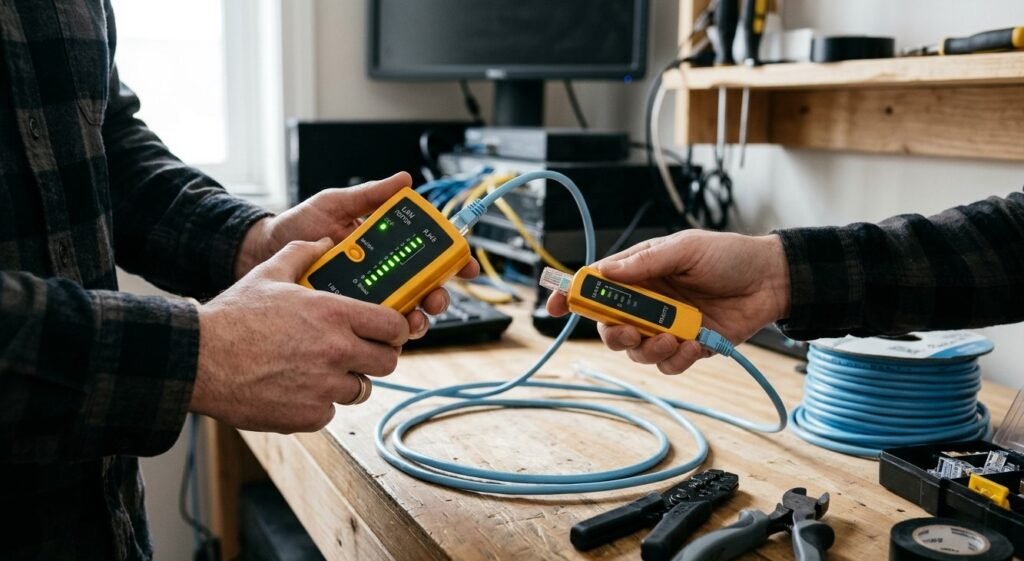
An inexpensive Ethernet cable tester is one of the most useful tools for checking cable wiring.
Most basic testers include two parts: a main testing unit and a remote unit. Connect each end of the cable to the corresponding tester port and turn on the device.
The tester checks whether the internal wires are connected correctly.
A typical tester may identify:
- Open circuits caused by broken wires.
- Short circuits between wires.
- Reversed or incorrectly connected wires.
- Missing connections.
- Some wiring faults and crossed pairs.
Follow the tester’s instructions and compare the indicator sequence with its expected pattern.
Important: Basic cable testers usually check wiring continuity and pin arrangement. They do not necessarily certify the cable’s maximum speed or performance under real network conditions.
5. Check Cable Speed and Connection Stability
A cable may pass a basic continuity test but still perform poorly.
To investigate further, check the negotiated Ethernet link speed on your computer.
For example, a Gigabit-capable connection should generally negotiate at 1 Gbps when both connected devices, their ports, and the cable support it.
You can also run a speed test using a service such as Speedtest by Ookla.
For a more reliable comparison:
- Test using a known-working Ethernet cable.
- Keep the same computer and router port.
- Run several speed tests.
- Compare the results with the original cable.
- Check whether the connection drops during use.
If possible, use a local network testing tool such as iPerf3 to measure performance between two devices on your home network. This can help separate local cable problems from internet service limitations.
6. When Should You Replace an Ethernet Cable?
Consider replacing the cable if:
- Its outer covering is damaged.
- The connector is broken or loose.
- A cable tester identifies wiring faults.
- The connection repeatedly drops when using that cable.
- A known-working replacement cable resolves the problem.
- It cannot reliably achieve the speed supported by your equipment.
For most home networks, a good-quality Cat5e or Cat6 cable is suitable for Gigabit Ethernet. Choose a cable length appropriate for your setup and avoid unnecessary sharp bends.
7. Frequently Asked Questions
Q1. Can a bad Ethernet cable cause buffering?
Yes. A damaged cable can cause packet loss, unstable connections, or reduced network performance, potentially interrupting streaming.
Q2. How can I test an Ethernet cable without a tester?
Inspect it physically, connect it between a router and computer, and compare its performance with a known-working cable.
Q3. Does a cable tester tell me the internet speed?
No. A basic tester checks wiring faults and continuity. Use network testing tools to measure actual connection performance.
Q4. Is Cat6 better than Cat5e?
Cat6 supports higher network speeds over appropriate distances and offers additional performance headroom. However, Cat5e is generally sufficient for ordinary Gigabit home networking.
Q5. Can a damaged Ethernet connector cause disconnections?
Yes. A loose or damaged RJ45 connector may create an unreliable connection, especially when the cable moves.
8. Final Thoughts and CTA
Testing an Ethernet cable is a straightforward way to troubleshoot home network problems. Start with a physical inspection, check the connection using a computer, and use an Ethernet cable tester when necessary. Comparing results with a known-working cable can help confirm whether replacement is needed.
If you use IPTV India with an Indian IPTV Box, maintaining good-quality Ethernet cables can help support a stable wired connection and reduce avoidable network interruptions.
Check your Ethernet cables today, replace damaged ones, and keep your home entertainment network running reliably.