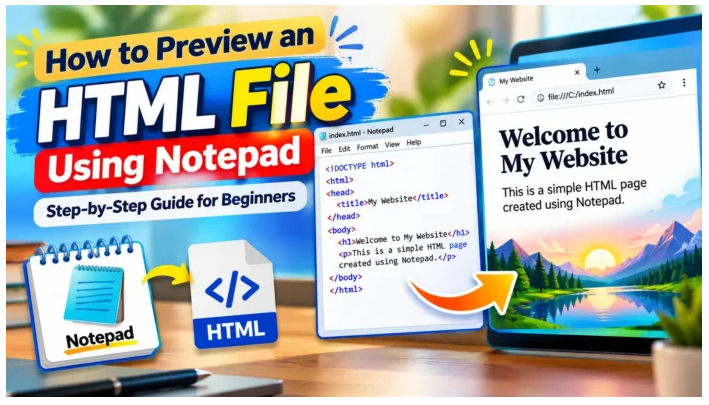
Have you ever written HTML code in Notepad and wondered how to see what your webpage actually looks like? You do not need expensive software, advanced programming knowledge, or a complicated development environment to get started. With a simple text editor such as Notepad and a web browser, you can create and preview your first HTML page in just a few minutes.
HTML, or HyperText Markup Language, is the standard markup language used to structure content on webpages. It helps browsers understand where headings, paragraphs, images, links, lists, and other webpage elements should appear. If you are learning web development, practicing HTML in Notepad is a practical way to understand how code becomes a visible webpage.
The best part is that you can write HTML in Notepad and preview the result in a browser without installing a separate HTML editor. You simply need to save the file with the correct .html extension and open it using a browser such as Microsoft Edge, Google Chrome, or Firefox.
In this beginner-friendly guide, you will learn how to create an HTML file in Notepad, save it correctly, preview it in a browser, refresh the page after making changes, troubleshoot common errors, and understand the difference between editing HTML and viewing the rendered webpage.
Whether you are a student, beginner programmer, blogger, or aspiring web designer, this step-by-step tutorial will help you get started confidently.
What Does It Mean to Preview an HTML File?
Previewing an HTML file means opening it in a web browser to see how the browser interprets and displays the HTML code.
When you write HTML in Notepad, you are working with plain text. You may see tags such as <h1>, <p>, and <body>. These tags describe the structure of the webpage, but they are not normally displayed as ordinary text when the browser renders a correctly structured HTML document.
For example, consider this HTML code:
<h1>Welcome to My Website</h1>
<p>This is my first HTML webpage.</p>
When you save the code in an HTML file and open it in a browser, you should see a large heading followed by a paragraph.
The browser interprets the markup and presents the result visually.
Why Should Beginners Preview HTML Files?
Previewing your HTML code helps you:
-
Check whether your headings and paragraphs appear correctly.
-
Identify spelling mistakes and missing content.
-
See how links and images behave.
-
Test changes while learning HTML.
-
Understand how browsers interpret markup.
-
Build simple websites without buying additional software.
Quotable takeaway: Previewing an HTML file means opening the saved document in a web browser so you can see the webpage produced by your HTML code.
What Do You Need to Preview an HTML File Using Notepad?
Before you begin, make sure you have the basic tools needed to create and open an HTML document.
1. Notepad
Notepad is a basic text editor included with Windows. You can use it to write HTML code without installing a dedicated programming editor.
2. A web browser
Use a browser such as Microsoft Edge, Google Chrome, or Firefox to open and display your HTML file.
3. A folder for your project
Create a folder where you can save your HTML files and any related images, stylesheets, or other website resources.
You do not need an internet connection to preview a basic HTML file saved on your computer. Local HTML pages can be opened directly in a browser.
However, content that depends on online services, remote resources, or a web server may require an internet connection or additional setup.
How to Create an HTML File in Notepad: Step-by-Step Instructions
The easiest way to preview an HTML file is to create a small webpage first. Follow these steps in order.
Step 1: Open Notepad
On a Windows computer, open the Start menu and search for Notepad.
Select the Notepad application to launch it.
You should see a blank text-editing area. This is where you will write your HTML code.
If your Windows version offers different Notepad features or menus, the exact appearance may vary slightly. The basic process remains the same.
Step 2: Write Your First HTML Code
Copy the following example into Notepad:
<!DOCTYPE html>
<html lang="en">
<head>
    <meta charset="UTF-8">
    <meta name="viewport" content="width=device-width, initial-scale=1.0">
    <title>My First HTML Page</title>
</head>
<body>
    <h1>Welcome to My Website</h1>
    <p>This is my first webpage created using Notepad.</p>
    <p>I can write HTML and preview it in a browser.</p>
</body>
</html>
This is a basic HTML document that includes the standard structure used by modern webpages.
Let’s understand the main parts.
| HTML element | Purpose |
|---|---|
<!DOCTYPE html> |
Declares the document as HTML5. |
<html lang="en"> |
Defines the document’s root and identifies its primary language as English. |
<head> |
Contains document information and metadata. |
<meta charset="UTF-8"> |
Specifies the character encoding. |
<meta name="viewport"> |
Helps the page display appropriately on mobile devices. |
<title> |
Sets the title displayed in the browser tab. |
<body> |
Contains the webpage’s visible content. |
<h1> |
Defines the main heading. |
<p> |
Defines a paragraph. |
You do not need to memorize every element immediately. Start by understanding the document structure and experimenting with the heading and paragraph text.
Step 3: Save the File With the Correct Extension
This is one of the most important steps.
In Notepad:
-
Select File.
-
Choose Save As.
-
Navigate to the folder where you want to store your project.
-
Enter
myfirstpage.htmlas the file name. -
Set Save as type to All files if that option is available.
-
Choose UTF-8 encoding if the dialog provides an encoding option.
-
Click Save.
Your file should be saved with the .html extension.
For example:
myfirstpage.html
Avoid accidentally saving it as:
myfirstpage.html.txt
A file with the .txt extension may open as plain text instead of being interpreted as an HTML document.
Step 4: Find Your Saved HTML File
Open File Explorer and navigate to the folder where you saved myfirstpage.html.
Look for the file in the folder.
Depending on your Windows settings, the file may display a browser icon or a generic document icon. The icon alone does not always establish the file type, so check the filename and extension if necessary.
If you cannot see the extension, enable file extensions in File Explorer’s View settings. In newer Windows versions, this option is generally available under View → Show → File name extensions.
Confirm that the filename ends in .html, not .txt.
Step 5: Open the HTML File in Your Browser
You can now preview your webpage.
There are several ways to open it.
Method A: Double-click the file
Double-click myfirstpage.html. Windows will generally open it in your default web browser.
Method B: Use the Open with option
-
Right-click the HTML file.
-
Select Open with.
-
Choose Microsoft Edge, Google Chrome, Firefox, or another installed browser.
Method C: Open the file from your browser
-
Open your preferred browser.
-
Press
Ctrl + O. -
Select your saved HTML file.
-
Choose Open.
The browser should display the webpage, including the heading and paragraphs you wrote in Notepad.
You have now created and previewed your first HTML page.
What Should Your First HTML Preview Look Like?
When you open the example file, you should see something similar to this:
Browser preview example
Welcome to My Website
This is my first webpage created using Notepad.
I can write HTML and preview it in a browser.
The heading appears larger than the paragraph because browsers apply default styling to HTML elements. You can change this appearance later with CSS.
The browser may display the page against a white background with dark text, depending on its default styles and settings.
If the browser shows the HTML tags themselves, check whether the file was saved with the correct extension and whether the document contains the expected markup.
How to Preview HTML Changes After Editing in Notepad
After viewing your first page, you will probably want to make changes.
For example, you might replace the heading with a different title or add another paragraph.
Follow this simple workflow.
Step 1: Return to Notepad
Open the saved HTML file in Notepad.
If the file is already open, you can switch back to the Notepad window.
Step 2: Edit the Content
Change the existing heading:
<h1>Welcome to My Website</h1>to:
<h1>Learn HTML Step by Step</h1>You can also add another paragraph:
<p>I am learning how to build webpages using HTML.</p>Step 3: Save Your Changes
Press Ctrl + S to save the updated file.
If you forget to save, your browser may continue showing the older version of the page.
Step 4: Refresh the Browser
Return to the browser window displaying your HTML file.
Press Ctrl + R or click the refresh icon.
The browser should reload the saved document and display your updated heading and paragraph.
Remember: Notepad edits the source code, while the browser displays the rendered webpage. Saving the code and refreshing the browser connects the two steps.
How to Preview an HTML File in Chrome or Microsoft Edge
If you prefer a particular browser, you can use it to preview your local HTML file.
Preview an HTML File in Google Chrome
-
Open Google Chrome.
-
Press
Ctrl + O. -
Navigate to your saved HTML file.
-
Select the file.
-
Click Open.
Chrome will display the HTML document.
You can also open File Explorer, right-click the file, and choose Chrome from the Open with menu.
Preview an HTML File in Microsoft Edge
-
Open Microsoft Edge.
-
Press
Ctrl + O. -
Select your HTML file.
-
Click Open.
Alternatively, double-click the file if Edge is your default browser.
Which Browser Should Beginners Use?
For basic HTML previews, any modern browser is generally sufficient.
| Browser | Suitable for |
|---|---|
| Google Chrome | Viewing pages and using developer tools |
| Microsoft Edge | Opening local HTML files on Windows |
| Mozilla Firefox | Viewing pages and inspecting webpage behavior |
You do not need to use every browser. Start with the one already installed on your computer.
If you are learning web development, testing your page in more than one browser can eventually help you identify differences in rendering and behavior.
How to Add CSS to an HTML File in Notepad
Once you know how to preview basic HTML, you can make your page more attractive with CSS.
CSS stands for Cascading Style Sheets. It controls visual presentation, including colors, fonts, spacing, borders, and layout.
You can add CSS directly to your HTML document using a <style> element inside the <head> section.
For example:
<!DOCTYPE html>
<html lang="en">
<head>
    <meta charset="UTF-8">
    <meta name="viewport" content="width=device-width, initial-scale=1.0">
    <title>My Styled Webpage</title>

    <style>
        body {
            font-family: Arial, sans-serif;
            margin: 30px;
            background-color: #f2f5f8;
        }

        h1 {
            color: #245b8f;
        }

        p {
            color: #333333;
            line-height: 1.6;
        }
    </style>
</head>
<body>
    <h1>Welcome to My Website</h1>
    <p>This webpage uses HTML and CSS.</p>
</body>
</html>
Save the file and refresh your browser.
The page should now have a light background, a blue heading, and adjusted paragraph spacing.
This example shows how a plain-text editor can be used to create a webpage with basic styling.
Should You Use Internal or External CSS?
For a small beginner project, internal CSS is convenient because the HTML and styles are stored in one file.
For a larger website, an external CSS file can make maintenance easier. You would save the styles in a separate .css file and connect it to your HTML document.
However, external CSS introduces another file that must be saved in the correct location. Begin with internal CSS if you are still learning the fundamentals.
How to Preview Images in an HTML File
Images make webpages more engaging and help you understand how HTML handles media.
To display an image, use the <img> element.
For example:
<img src="photo.jpg" alt="A sample photograph" width="400">This code expects an image named photo.jpg in the same folder as the HTML file.
Your folder might look like this:
MyWebsite/
    myfirstpage.html
    photo.jpg
Save the HTML file, confirm that the image filename matches the value in src, and refresh the browser.
If the image does not appear, check that:
-
The image is in the expected folder.
-
The filename and extension match exactly.
-
The path in
srcis correct. -
The image file is supported by the browser.
The alt attribute provides alternative text that can help people using assistive technologies and can be displayed if the image cannot load.
How to Add Links to an HTML Page
You can also preview hyperlinks in your local HTML document.
For example:
<a href="about.html">About This Website</a>This creates a link to a file named about.html.
For the link to work as intended, the destination file must exist at the specified location.
You can also create a link to another section of the same page or connect pages in a small local website. When using external destinations, ensure that the destination is trustworthy and that the link is appropriate for your project.
To test a link, save the HTML file, refresh the browser, and click the link.
If you are creating a local multi-page website, keeping related files organized in one project folder makes troubleshooting easier.
Common Problems When Previewing HTML in Notepad
Sometimes an HTML page does not appear as expected. Most beginner problems are straightforward to fix.
Problem 1: The File Opens as Plain Text
Possible cause: The file was saved with a .txt extension or the wrong file type.
Solution:
-
Check the complete filename.
-
Enable file extensions in File Explorer.
-
Use Save As in Notepad.
-
Set Save as type to All files if available.
-
Save the file with a name such as
index.html.
Then reopen the saved file in your browser.
Problem 2: The Browser Shows HTML Tags
Possible cause: The document may have been saved as a text file, or the markup may have been placed inside an element that treats it as text.
Solution: Confirm the .html extension and review the document structure. Make sure your intended webpage content appears inside the <body> element and is not unintentionally wrapped in a <pre> or <code> element.
Problem 3: Your Changes Do Not Appear
Possible cause: The file may not have been saved, or the browser may still be showing an earlier version.
Solution:
-
Return to Notepad.
-
Press
Ctrl + S. -
Return to the browser.
-
Press
Ctrl + R.
If the issue continues, verify that you are editing the same file that is open in the browser.
Problem 4: Images Are Missing
Possible cause: The image path or filename is incorrect.
Solution: Check the exact spelling, extension, and folder location. If the image is stored in an images subfolder, the path might look like this:
<img src="images/photo.jpg" alt="Sample image">The folder structure must match the path in your code.
Problem 5: The Page Looks Different on Another Computer
Possible cause: Browsers, fonts, screen sizes, installed resources, and default styles may differ.
Solution: Use appropriate CSS, include responsive design practices, and test the page at different window sizes. For more advanced projects, check how the page renders in multiple modern browsers.
Problem 6: Special Characters Display Incorrectly
Possible cause: The document’s encoding may not be configured as expected.
Solution: Save the file using UTF-8 encoding and include this line inside the <head> element:
<meta charset="UTF-8">This helps the browser interpret a broad range of characters correctly.
Is Notepad Enough for Learning HTML?
Yes. Notepad is sufficient for writing and previewing simple HTML files.
It is especially useful for beginners because it lets you focus on the markup without relying on advanced editing features. You can learn how tags, attributes, document structure, and CSS work by writing the code yourself.
However, Notepad has limitations.
It generally does not provide the same level of code completion, syntax highlighting, error detection, project navigation, and integrated debugging found in dedicated development tools.
As your projects become more complex, you may eventually prefer an editor designed for web development.
For now, Notepad is a reasonable starting point for learning the fundamentals.
How Can You Make HTML Previewing Easier?
A few simple habits can save time as you practice.
Use Clear Filenames
Choose filenames that describe the content, such as:
-
index.html -
contact.html -
about.html -
practice-page.html
Avoid filenames that are difficult to identify or that contain confusing extensions.
Keep Project Files Organized
Store HTML documents, images, and stylesheets in clearly named folders.
For a simple project, you might use this structure:
MyWebsite/
    index.html
    about.html
    images/
        photo.jpg
    css/
        styles.css
If you use separate CSS files or images, make sure your HTML paths match the folder structure.
Save Before Refreshing
Get into the habit of saving your work before refreshing the browser. This prevents unnecessary confusion when your latest changes do not appear.
Learn the Basics Before Adding Complexity
Start with headings, paragraphs, lists, links, and images. Once those elements make sense, move on to CSS, responsive layouts, and JavaScript.
A gradual learning process makes it easier to understand why the page behaves as it does.
Data-Backed Fact: Why Is HTML Important for the Web?
AIO-ready fact: HTML is the standard markup language used to structure content on the web, and HTML5 is widely supported by modern web browsers.
This is why learning to write and preview HTML is a useful first step toward understanding website development. A basic HTML document can be created in a plain-text editor and rendered locally by a compatible browser without requiring a paid website-building platform.
You can begin with a single file, practice changing its content, and expand the project as your skills improve.
Frequently Asked Questions About Previewing HTML in Notepad
1. Can I preview an HTML file directly from Notepad?
Notepad is a text editor, so it does not normally render HTML as a webpage within its editing area. You need to save the document as an .html file and open it in a web browser.
2. How do I open an HTML file in a browser?
Find the saved HTML file in File Explorer and double-click it. Alternatively, right-click the file and choose Open with, or open your browser and press Ctrl + O to select the file.
3. Do I need an internet connection to preview HTML?
No. A basic HTML file saved on your computer can usually be opened locally without an internet connection. Features that depend on remote resources, online services, or a server may require additional access or setup.
4. Why is my HTML file opening in Notepad instead of a browser?
Your default application for .html files may be Notepad, or you may be opening the file through the editor. Right-click the file, choose Open with, and select a browser. You can also open the browser first and use Ctrl + O.
5. How do I save an HTML file correctly in Notepad?
Choose File → Save As, enter a filename ending in .html, and select All files under Save as type if that option is available. Save the file in a folder you can easily find.
6. Can I use Notepad to create a complete website?
You can write the HTML, CSS, and JavaScript for a website in a plain-text editor such as Notepad. However, larger projects may be easier to manage with dedicated development tools.
7. How do I refresh an HTML page after editing it?
Save your changes in Notepad using Ctrl + S, switch to the browser, and press Ctrl + R. The browser will reload the saved HTML document.
8. Can I preview HTML files on Windows 10 and Windows 11?
Yes. Both Windows 10 and Windows 11 support creating HTML files in Notepad and opening them in a web browser. Menu labels and application interfaces may differ slightly.
9. Why is the browser displaying my code instead of my webpage?
Check whether the filename ends in .html rather than .html.txt. Also inspect the markup to make sure the intended content is not accidentally inside an element that displays code as text.
10. Can I add CSS to an HTML file created in Notepad?
Yes. You can add a <style> element inside the <head> section or create a separate CSS file. Save your changes and refresh the browser to see the updated styling.
11. Can I preview HTML on a mobile device?
Yes, but the process differs depending on the device and available applications. You can also preview your webpage on a desktop browser and use responsive CSS to help it adapt to different screen sizes.
12. Is Notepad good for complete beginners?
Yes. Notepad is a simple starting point because it lets beginners write and save HTML without having to learn a complex interface. As your projects grow, you can explore more advanced tools if needed.
USA Customer Reviews: What Should Beginners Know?
When researching tutorials about HTML previewing, feedback from readers can help identify whether instructions are clear, practical, and easy to follow.
However, no independently verified USA customer reviews for this specific guide have been established for this article. Rather than inventing testimonials or attributing fictional comments to American users, it is more useful to evaluate the tutorial against practical learning goals.
A beginner should be able to:
-
Create an HTML document in Notepad.
-
Save it with the correct file extension.
-
Open the document in a web browser.
-
Make a change and refresh the page.
-
Identify and correct common file-extension or image-path problems.
These are practical ways to judge whether a beginner’s tutorial is useful. If you publish this article on a website, add genuine reader feedback only after obtaining authentic comments and appropriate permission to use them.
Final Thoughts: Preview Your First HTML File With Confidence
Learning how to preview an HTML file using Notepad is a simple and useful introduction to web development. You do not need expensive software or advanced technical knowledge to get started.
The process is straightforward: open Notepad, write your HTML code, save the file with the .html extension, and open it in a web browser. When you make changes, save the document and refresh the browser to see the updated result.
Once you understand this workflow, you can begin experimenting with headings, paragraphs, images, links, and CSS. Each small project will help you become more comfortable with HTML and how browsers display webpages.
Your Wellness, Read the Complete Guide is a useful reminder to approach learning with curiosity and a commitment to understanding the details. In the same way that reliable information helps people make better everyday decisions, clear tutorials help beginners build practical digital skills one step at a time.
Ready to take the next step? Create your first HTML file today, preview it in your favorite browser, and start building the foundation for your web development journey.
Disclaimer: This article is provided for educational and informational purposes only. It does not make health claims or provide medical advice. The instructions are intended as a general beginner’s guide, and some menu options may vary by Windows version or browser.