Use Of Computer Imagine sitting down in front of a computer monitor, watching the cursor blink mockingly on a blank screen, completely unsure of where to click next. For millions of absolute beginners, entering the modern digital landscape feels like stepping into the cockpit of an aircraft without ever reading the operating manual. You watch colleagues, friends, or younger professionals leap across open application windows, build dynamic financial spreadsheets, execute complex software commands, and organize file archives without their fingers ever leaving the keyboard.
Technology is no longer an optional skill reserved for IT specialists; it is the universal infrastructure of modern employment, commerce, administrative operations, and everyday personal communication. Operating a personal computer is not an inherent talent that people are born with—it is a clear, systematic, and highly repeatable discipline that anyone can master with step-by-step instruction. Whether you are aiming to enter the corporate workforce, streamline a small retail business, transition into an administrative role, or simply eliminate the anxiety that comes with using technology, this comprehensive master guide will teach you how to Learn Computer Skills from Basic to Advanced.
In this detailed blueprint, you will gain a clear understanding of core hardware and operating system architectures, master workplace efficiency techniques using strategic hotkeys, explore advanced enterprise accounting and office automation workflows, implement proper workstation ergonomics, and establish routines to maintain system performance and digital security.
Use Of Computer What Are the Fundamental Computer Skills Every Beginner Must Know?
Digital literacy serves as the foundation for all advanced technical competencies. Before jumping into complex business applications, data analysis tools, or enterprise resource planning software, every learner must understand how hardware components, operating system interfaces, and file directories interact behind the scenes. Without a firm grasp of these core principles, users often find themselves lost when simple technical glitches occur.
       ┌─────────────────────────────────────────────────────────┐
       │             CORE DIGITAL LITERACY FRAMEWORK             │
       └────────────────────────────┬────────────────────────────┘
                                    │
         ┌──────────────────────────┴──────────────────────────┐
         ▼                                                     ▼
┌──────────────────┐                                  ┌──────────────────┐
│ Operating System │                                  │ File Management  │
│ Architecture     │                                  │ System           │
└────────┬─────────┘                                  └────────┬─────────┘
         │                                                     │
         ├─ Desktop Environment Controls                       ├─ Hierarchical Drive Partitioning
         ├─ Start Menu Search Indexing                         ├─ Standardized Date-First Naming
         └─ Window Snap & Layout Management                    └─ Extension Awareness & Storage
Hardware vs. Software Architecture Fundamentals
To navigate a personal computer smoothly, you must first understand the relationship between physical hardware components and internal logical software:
-
Central Processing Unit (CPU): Often called the brain of the computer, the CPU executes commands, processes data streams, and coordinates instructions between physical hardware devices and installed software applications.
-
Random Access Memory (RAM): The short-term working memory of your machine. RAM stores active applications, open web browser tabs, and temporary system data so your processor can access them instantly. Having sufficient RAM allows you to run multiple intensive programs simultaneously without experiencing system freeze-ups.
-
Storage Drives (HDD vs. SSD): Your long-term digital file cabinet. Modern personal computers utilize Solid-State Drives (SSDs), which read and write data significantly faster than traditional spinning mechanical Hard Disk Drives (HDDs), resulting in rapid boot times and quick application launches.
-
Peripheral Input/Output Devices: Hardware accessories used to send instructions to the system—such as keyboards, mice, webcams, and document scanners—alongside output devices that display or transmit processed information, such as high-resolution monitors, printers, and speakers.
Navigating the Operating System Interface like a Pro
The operating system (OS)—such as Microsoft Windows—acts as the master translator between human inputs and electronic hardware operations. Beginners should focus on mastering these essential desktop interface elements:
-
The Desktop Workspace: Treat your primary desktop screen as an active physical desk surface. While it is tempting to save every downloaded document directly onto the desktop, overcluttering it slows down visual graphics rendering and makes manual file retrieval frustratingly inefficient. Restrict desktop icons strictly to vital application shortcuts.
-
The Taskbar and Start Menu: The Taskbar positioned along the bottom of your screen is your main command strip. Pin your most frequently used programs to the Taskbar for instant single-click access. Utilize the Start Menu’s built-in universal search bar (
Windows Key) to locate obscure settings, system control panels, or buried documents instantly without navigating through deep directory menus manually. -
Window Controls and Snap Layouts: Every program runs inside a rectangular frame equipped with three standard window management buttons in the upper corner: Minimize (collapses the app to the taskbar), Maximize/Restore (expands or contracts the viewable area), and Close (terminates the active program). Modern operating systems allow you to “snap” active windows side-by-side using the shortcut key combination
Windows Key + Left/Right Arrow. This splits your monitor view evenly, enabling efficient multitasking—such as drafting an email while referencing a spreadsheet or web browser.
Professional File Management and Directory Hierarchies
Unorganized electronic files waste hundreds of working hours every single year. Establishing a structured, predictable folder hierarchy prevents lost data, eliminates accidental file overwrites, and minimizes daily workplace stress.
1. Strategic Drive Partitioning
Never save all your personal documents into one giant, unorganized folder. Modern storage drives are divided into logical lettered partitions:
-
System Drive (
C:Drive): Houses the primary operating system files, core device drivers, and installed application programs. Avoid altering, moving, or manually storing personal media within system directories to prevent accidental OS corruption. -
Data Drive (
D:orE:Drive): Dedicated storage partitions specifically configured for user documents, client records, media archives, and work projects. Isolating personal data from the main system drive protects your information during operating system updates or clean reinstalls.
2. Constructing a Logical Folder Tree
Build a systematic directory structure using broad main folders that divide into specific, organized subfolders. For example:
Documents/
├── Business_Operations/
│   ├── 2026_Client_Invoices/
│   └── Marketing_Campaigns/
└── Personal_Records/
    ├── Tax_Filings_2026/
    └── Medical_Insurance/
3. Standardized Naming Conventions
Adopt a disciplined, uniform file-naming protocol across your personal computer and team shared drives. A date-first naming structure keeps files sorted chronologically automatically:
-
Recommended Format:
[YYYY-MM-DD]_[ProjectName]_[DocType]_[Version].[ext] -
Good Example:
2026-10-18_Q3_Financial_Summary_V2.xlsx -
Bad Example:
document111_final_final2.xlsx
4. Understanding Standard File Extensions
File extensions consist of three or four letters following a period at the end of a file name. They inform your operating system which specific software program should be used to open the file:
-
Text & Document Formats:
.docx(Editable Word Document),.pdf(Portable Document Format – read-only viewable file),.txt(Plain Unformatted Text). -
Data & Spreadsheet Formats:
.xlsx(Excel Workbook),.csv(Comma-Separated Values for raw data transfer). -
Visual & Media Formats:
.jpg/.jpeg(Compressed Photographic Images),.png(High-Quality Graphics with transparency support),.mp4(Standard Digital Video). -
Executable System Files:
.exe(Program Application Installer – handle with caution when downloading from untrusted internet sources).
How Do Computer Shortcut Keys Boost Daily Workflow Efficiency?
Switching continuously between the keyboard and mouse creates tiny, microscopic delays throughout your workday. While moving your hand to grab the mouse takes only a couple of seconds, repeating that action hundreds of times a day accumulates into dozens of lost hours every month. Memorizing strategic hotkeys eliminates physical friction and dramatically boosts typing speed and computer navigation.
According to digital productivity studies, utilizing standard Computer Shortcut Keys instead of manual mouse navigation TallyPrime Tutorials saves the average office worker up to 8 working days per year, improving overall workflow efficiency by roughly 12% to 15% while reducing repetitive wrist strain.
The Ultimate Keyboard Shortcut Master Matrix
Whether you are writing an administrative email, constructing an accounting ledger, or organizing client folders, mastering these essential key combinations will elevate your desktop navigation from slow to instantaneous.
Practical Exercises to Build Muscle Memory
-
The Mouse-Free Editing Challenge: Open a text document and practice editing two full paragraphs using only arrow keys,
Shift(to highlight text),Ctrl + C,Ctrl + V, andCtrl + Z. -
The Rapid Window Switch: Open three separate programs (a browser, a word processor, and a folder window). Practice switching between them using
Alt + Tabuntil you can select any target application in under one second. -
The Multi-Snippet Paste Workflow: Enable Clipboard History by pressing
Win + V. Copy three distinct sentences from different websites, open a blank document, and useWin + Vto select and paste each item in custom order.
Mastering these shortcuts allows you to navigate your computer fluidly, keeping your focus entirely on your work rather than searching through software menus.
How Can Beginners Progress to Advanced Business Software Proficiency?
Mastering basic operating system commands and shortcut keys is only the launchpad. To truly excel in professional environments, switch from basic literacy to advanced business application suites. Employers and clients look for proficiency in office productivity suites, data manipulation engines, and specialized enterprise management platforms.
┌─────────────────────────────────────────────────────────────────┐
│                 SKILL PROGRESSION PIPELINE                      │
└────────────────────────────────┬────────────────────────────────┘
                                 │
   1. Fundamental Literacy       │ OS Navigation, File Storage
   ──────────────────────────────┼────────────────────────────────
   2. Efficiency Optimization    │ Hotkeys, Touch Typing, Search
   ──────────────────────────────┼────────────────────────────────
   3. Office Automation          │ Word Processors, Spreadsheets
   ──────────────────────────────┼────────────────────────────────
   4. Business Operations        │ TallyPrime, GST, Invoicing
Transitioning from Basic Typing to Advanced Office Automation
1. Professional Document Design and Formatting
Stop treating word processing software like a digital typewriter. Professional document creation relies on dynamic formatting engines:
-
Styles and Hierarchies: Use built-in Heading styles (
Heading 1,Heading 2,Heading 3) rather than manually increasing font sizes and applying bold formatting. Heading structures allow word processors to automatically generate and update click-navigable Tables of Contents in seconds. -
Section and Page Breaks: Avoid hitting the
Enterkey repeatedly to push text to the next page. Use explicit Page Breaks (Ctrl + Enter) or Section Breaks to maintain precise document layouts, even when adding or deleting text earlier in the file. -
Track Changes and Reviewing: Learn how to collaborate efficiently using inline comments, revision tracking, and document comparison tools when working with remote teams.
2. Spreadsheet Analysis and Data Manipulation
Spreadsheets are the backbone of modern corporate decision-making, financial tracking, inventory logging, and logistical planning.
-
Dynamic Formula Construction: Move beyond basic arithmetic to master standard mathematical functions (
=SUM(),=AVERAGE(),=COUNTIF()). Always use cell references (such as=A1+B1) instead of hardcoding static numbers so formulas recalculate automatically when source data changes. -
Advanced Lookup Functions: Learn advanced lookup formulas like
VLOOKUPandXLOOKUP. These functions allow you to match data across separate worksheets automatically—such as pulling a product price into a client invoice using its SKU code. -
Conditional Formatting: Apply conditional rules to highlight duplicate entries automatically, flag overdue invoice dates in red, or display color scales for sales performance trends.
-
Interactive Pivot Tables: Transform thousands of rows of raw data into clean, summarized reports with just a few clicks. Pivot tables allow you to group financial records by month, sales region, or product line instantly without writing complex manual formulas.
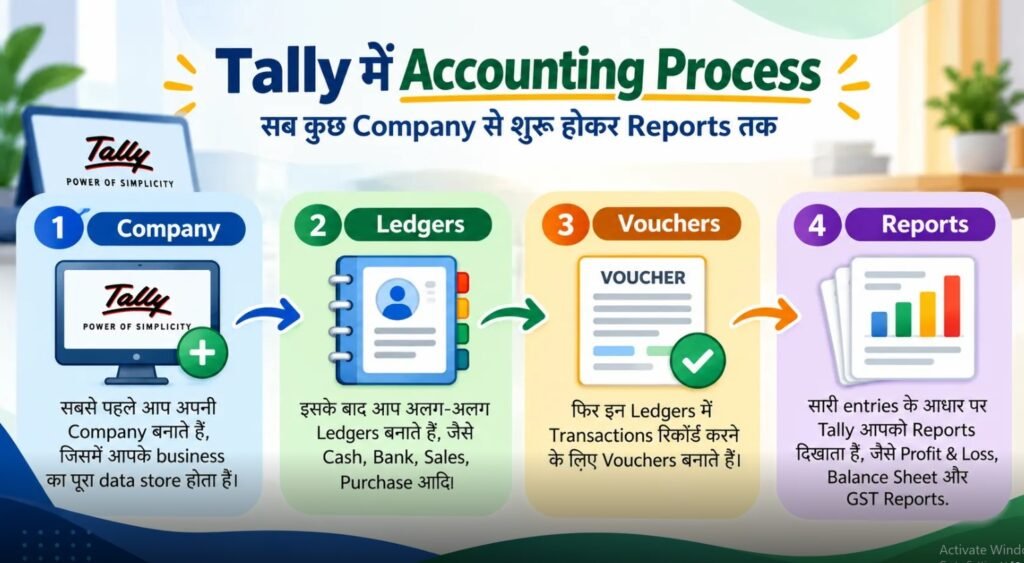
Master Accounting Software: TallyPrime Tutorials
For individuals working in accounting, inventory management, bookkeeping, or small business administration, structured learning in specialized financial software is essential. Educational portals like useofcomputer.in provide practical guides, practice sheets, and structured TallyPrime Tutorials that bridge the gap between theoretical accounting concepts and real-world workplace execution.
┌─────────────────────────────────────────────────────────────────┐
│                TALLYPRIME WORKFLOW PIPELINE                     │
└────────────────────────────────┬────────────────────────────────┘
                                 │
   1. Company Creation           │ Setup Financial Year, Tax ID
   ──────────────────────────────┼────────────────────────────────
   2. Ledger Configuration       │ Map Debits, Credits, Groups
   ──────────────────────────────┼────────────────────────────────
   3. Voucher Entry              │ Sales, Purchases, Receipts
   ──────────────────────────────┼────────────────────────────────
   4. Automated Reporting        │ P&L, Balance Sheet, GST Returns
Core Modules Covered in Comprehensive TallyPrime Tutorials:
1. Company Creation and Chart of Accounts
Learn how to create a company profile within the software, select the active financial year, configure local currency settings, and establish chart-of-account ledgers under correct primary groups (e.g., Current Assets, Sundry Debtors, Direct Expenses, Capital Account).
2. Comprehensive Accounting Voucher Processing
Financial accounting revolves around entering transactions into appropriate transaction vouchers. Mastery requires knowing exactly which voucher type matches real-world transactions:
-
Sales Voucher (
F8): Records credit and cash sales to customers, generates itemized invoices, and updates inventory balances automatically. -
Purchase Voucher (
F9): Logs incoming vendor bills, updates supplier accounts payable, and adds stock items to inventory records. -
Payment Voucher (
F5): Tracks outgoing cash or bank transfers used to settle operational expenses, vendor balances, or employee salaries. -
Receipt Voucher (
F6): Records incoming funds collected from clients, investments, or accrued interest. -
Contra Voucher (
F4): Handles internal cash transfers between physical cash registers and corporate bank accounts. -
Journal Voucher (
F7): Used for non-cash adjustments, depreciation entries, and year-end ledger reconciliations.
3. Automated GST and Tax Compliance Integration
Modern accounting software automates taxation calculations to prevent compliance errors. TallyPrime tutorials show you how to set up Goods and Services Tax (GST) parameters, assign correct Harmonized System Nomenclature (HSN) codes to products, apply Central GST (CGST), State GST (SGST), or Integrated GST (IGST) ledgers automatically, and generate electronic waybills (e-way bills) for shipping goods without manual data entry.
4. Inventory and Multi-Warehouse Stock Management
Track physical products across multiple warehouse locations. Configure batch numbers, manufacturing dates, expiration alerts, and dynamic reorder stock levels so the software notifies you before popular products run out of stock.
5. Instant Financial Statement Generation
The main advantage of mastering accounting software is automated reporting. Entering daily transactions automatically generates real-time Trial Balances, Profit & Loss Statements, Balance Sheets, Cash Flow statements, and Ratio Analysis summaries with a single keystroke.
How Can Ergonomic Habits Prevent Computing Injuries During Long Sessions?
Spending long hours seated at a desk, typing on flat keyboards, and staring into illuminated display screens can cause significant physical discomfort, repetitive strain injuries (RSI), lower back pain, and vision fatigue if proper ergonomic standards are ignored.
                    MONITOR TOP AT EYE LEVEL
                         ┌──────────┐
                         │  Screen  │
                         └────┬─────┘
                              │
         NEUTRAL SPINE        │   ELBOWS BENT AT 90°
               │              │  ┌─ Keyboard
               ▼              ▼  ▼
             ( o )───────────[Laptop/PC]
              /|\             │
             / | \────────────┘
              / \
           FEET FLAT ON FLOOR
The Professional Workstation Setup Checklist
-
Monitor Height and Distance: Position your display screen so the top edge rests directly at or slightly below eye level. Place the screen roughly an arm’s length away (20 to 30 inches20\text{ to }30\text{ inches}) to keep your head balanced naturally over your spine, preventing neck strain.
-
Chair and Spine Alignment: Adjust your chair height so your feet rest flat on the floor with knees bent at a comfortable 90∘90^\circ angle. Use an adjustable chair that offers dedicated lower back (lumbar) support to maintain the natural curve of your spine.
-
Keyboard and Wrist Position: Keep your upper arms hanging naturally beside your torso, with elbows bent at a 90∘ to 100∘90^\circ\text{ to }100^\circ angle. Your keyboard should sit at a height that allows your forearms to remain parallel to the floor, keeping your wrists flat rather than bent upward or resting heavily on hard surfaces while typing.
-
Lighting and Glare Reduction: Position your desk perpendicular to windows to avoid harsh screen glare. Adjust monitor brightness to match the ambient lighting of your room so your eyes do not have to strain against extreme contrast.
Daily Physical Habits for Long-Term Wellness
1. The 20-20-20 Eye Care Rule
To prevent digital eye strain and dry eyes, look away from your screen every 20 minutes and focus on an object located at least 20 feet away for 20 full seconds. This simple habit relaxes your eyes’ focusing muscles, reducing headache risks.
2. Desk Stretching and Movement Intervals
Never remain static in one position for hours. Take short 60-second micro-breaks every hour to roll your shoulders, stretch your forearm flexors, and stand up to restore blood circulation to your legs.
Health Disclaimer: The ergonomic setup recommendations and physical health suggestions outlined in this guide are provided strictly for educational and informational purposes and do not constitute professional medical advice. If you suffer from chronic wrist discomfort, recurring back pain, severe headaches, or persistent eye strain, please consult a licensed healthcare professional or physical therapist for a personalized evaluation.
Essential Computer Maintenance and Cyber Security Practices
A personal computer is an investment that requires routine care to maintain fast performance and protect sensitive personal data. Basic computer maintenance and cybersecurity protocols keep your system running smoothly while protecting you from online threats.
System Optimization and Storage Clean-Up
Over time, web browsers and software programs leave behind temporary caches, installation junk files, and system logs that clutter your storage drive and slow down performance:
-
Run System Disk Cleanup: Use built-in OS tools like Disk Cleanup or Storage Sense to clear out temporary update caches, empty the Recycle Bin, and remove leftover system files safely.
-
Manage Startup Applications: Many installed applications configure themselves to launch automatically when your computer powers on, slowing down boot times. Open Task Manager (
Ctrl + Shift + Esc), click the Startup Apps tab, and disable non-essential programs from launching automatically. -
Keep Software and Drivers Updated: Operating system updates contain vital security patches, performance upgrades, and hardware driver compatibility improvements. Enable automatic updates to keep your machine protected against security vulnerabilities.
Essential Cybersecurity Habits for Beginners
Protecting your computer from security threats, dangerous links, and phishing scams requires vigilant online habits:
┌─────────────────────────────────────────────────────────────────┐
│               CYBERSECURITY DEFENSE CHECKLIST                   │
└────────────────────────────────┬────────────────────────────────┘
                                 │
   1. Strong Passwords           │ Use 12+ Character Passphrases
   ──────────────────────────────┼────────────────────────────────
   2. Two-Factor Authentication   │ Authenticator Apps, Security Keys
   ──────────────────────────────┼────────────────────────────────
   3. Phishing Awareness         │ Check Sender Emails & Hover Links
   ──────────────────────────────┼────────────────────────────────
   4. Safe Downloads             │ Only Download from Official Sites
-
Create Complex Passwords: Avoid predictable passwords like your birthdate or simple number patterns (
123456). Beginner-Friendly Tips & Guides Use long passphrases containing a mix of upper and lower case letters, numbers, and special symbols (e.g.,Coffee!Desk#2026). Use an encrypted password manager to generate and store unique credentials securely. -
Enable Two-Factor Authentication (2FA): Turn on 2FA for all online email, banking, and social accounts. This adds an extra layer of security by requiring a unique verification code sent to your phone or authenticator app whenever someone tries to log in from a new device.
-
Recognize Phishing Emails and Malicious Links: Be cautious of unexpected emails claiming your account is suspended or offering unearned rewards. Always verify sender email addresses carefully, and hover over links to preview the true destination URL before clicking.
-
Maintain Regular Data Backups: Follow the industry-standard 3-2-1 Backup Rule: Keep at least 3 copies of your important data, stored on 2 different types of storage media (e.g., an internal SSD and an external hard drive), with 1 backup copy kept offsite in a secure cloud storage service.
Real-World Success Stories from American Beginners
Hearing how others overcome technological hurdles can give you the push you need to start your own learning journey. Here are real-world stories from American learners who transformed their technical confidence:
“I went from struggling with a mouse to running invoice ledgers in weeks!”
“Before taking time to systematically study computer basics, opening multiple windows and finding saved files felt overwhelming. Learning simple keyboard shortcuts cut my manual work time in half almost immediately. Moving into software-specific guides and TallyPrime tutorials gave me the practical confidence I needed to apply for an administrative assistant position. I now manage our entire office’s purchasing accounts with zero stress!”
— Sarah Jenkins, Administrative Specialist (Austin, Texas, USA)
“A complete game-changer for my small retail store operations.”
“Running a small retail shop meant I was staying up late wrestling with paper invoices and messy spreadsheets. Learning systematic folder structures and following step-by-step accounting walkthroughs on sites like useofcomputer.in completely transformed how I manage my business. Invoicing now takes seconds, inventory syncs automatically, and tax prep is completely worry-free.”
— Marcus Vance, Store Owner (Columbus, Ohio, USA)
Frequently Asked Questions (FAQ)
What is the fastest way for an absolute beginner to learn computer skills?
The fastest approach combines daily hands-on practice with structured, modular tutorials. Start by mastering basic operating system file storage and essential keyboard shortcuts before moving on to practical office tools like spreadsheets or specialized accounting software.
Do I need strong math skills to operate accounting software like TallyPrime?
No. Modern business software automates all calculations, tax deductions, and financial statement balances automatically. Users only need a basic understanding of core business concepts—such as debits, credits, assets, and liabilities—to select the correct ledger accounts and record transactions accurately.
Why are keyboard shortcuts so important for everyday computing?
Keyboard shortcuts reduce reliance on the mouse, minimize repetitive hand motions, speed up document editing, and make switching between multiple open applications faster.
How do I protect my personal computer from malware and security threats?
Maintain active operating system updates, keep your default firewall active, avoid opening unexpected email attachments or software from unverified websites, and back up your files regularly using secure cloud storage or an external hard drive.
Transform Your Digital Confidence Today
Mastering computer literacy is one of the most practical investments you can make in your daily productivity and professional marketability. By building strong basic skills, using keyboard shortcuts, and mastering enterprise applications, you turn technology from an intimidating obstacle into your greatest career asset.
Ready to level up your computer proficiency? Head over to useofcomputer.in to access step-by-step guides, practice sheets, keyboard shortcut cheat sheets, and detailed accounting tutorials. Start practicing today and build the technical skills you need to succeed in any modern environment!
READ MORE : Use Of Computer